
Installation Guide
This guide explains how to install the Flux theme and its dependent modules on a DNN site. The complete process consists of 6 steps: adjust upload limits → install the theme → apply the theme → install modules → initialize → upload resources.
System Requirements
Before installing the Flux theme, ensure your DNN environment meets the following requirements:
- DNN Platform 9.x or higher
- .NET Framework 4.8 or higher
- IIS Web server installed
Installation Steps
1. Adjust the Upload Size Limit
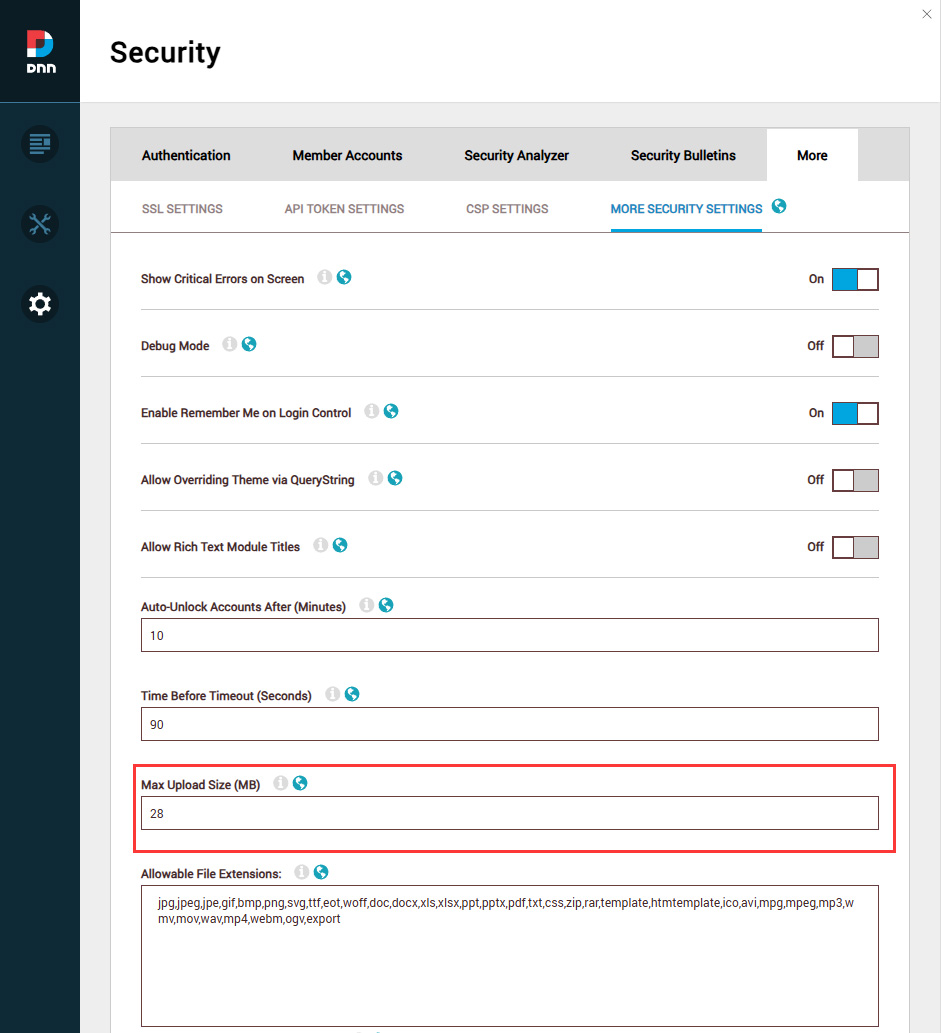
The theme and module installation packages are large, so you need to increase the upload limit first:
- Log in to the DNN admin backend with a Host account
- Go to Settings > Security > More
- Select the MORE SECURITY SETTINGS tab
- Change Max Upload Size to 28 (MB) or a larger value
2. Install the Theme Package
- Go to Extensions > Install Extension
- Upload the theme installation package:
Flux-theme_01.00.00.zip - Follow the installation wizard to complete the installation
3. Apply the Theme
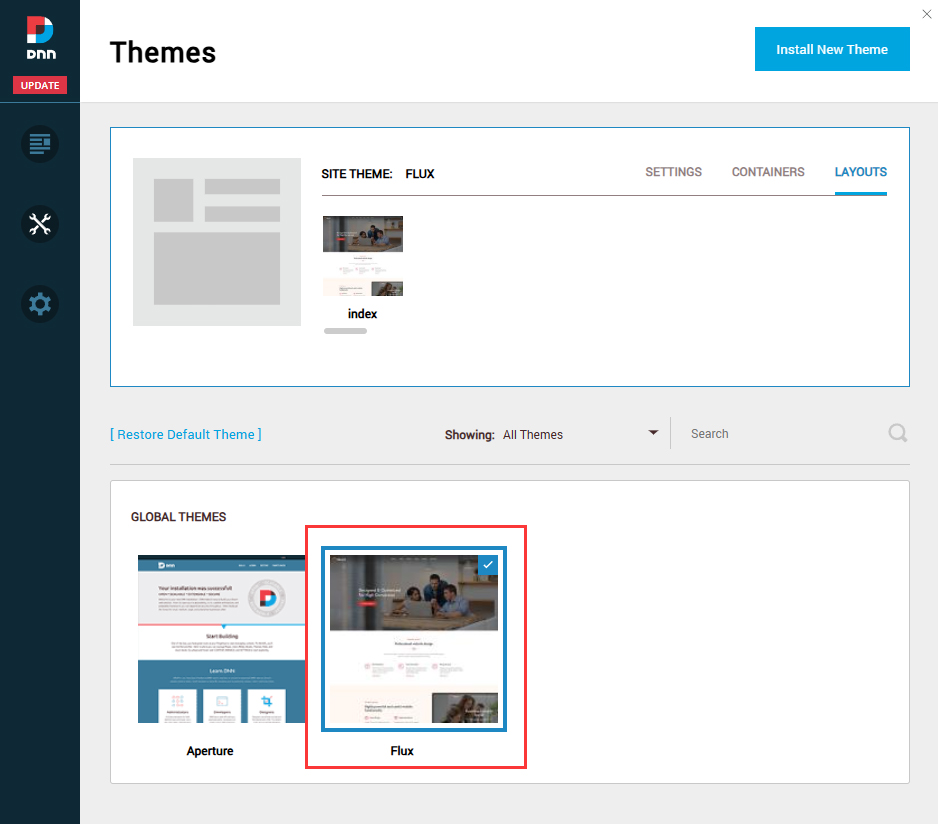
- Go to Manage > Themes
- Select and apply the Flux theme
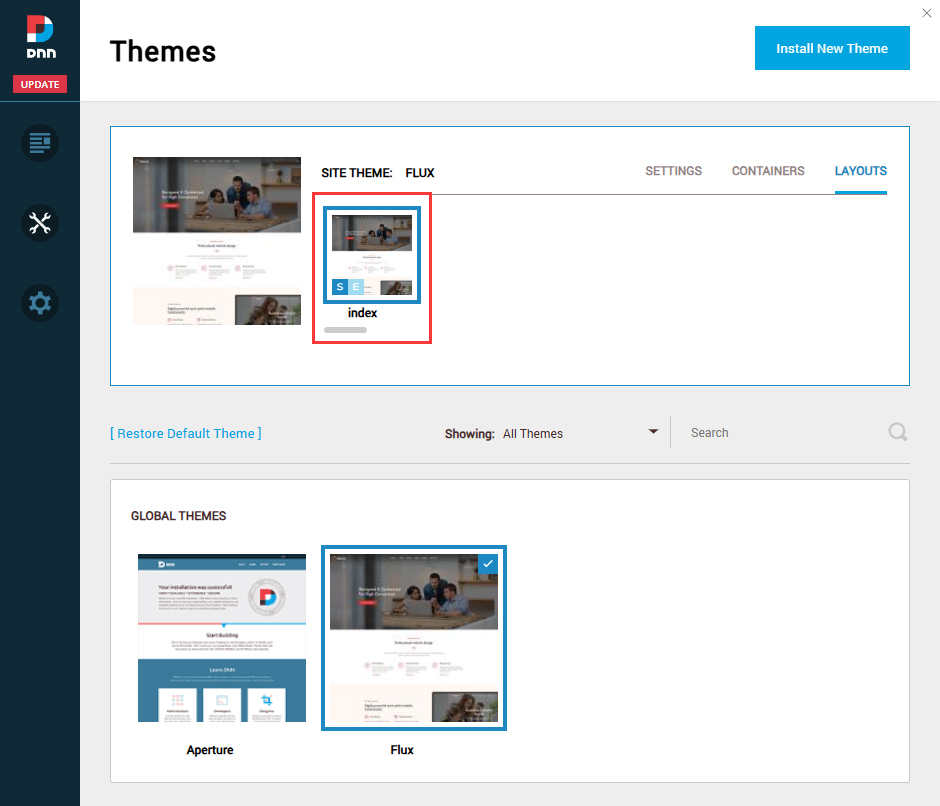
- Set both Site Theme and Edit Theme to Flux – index
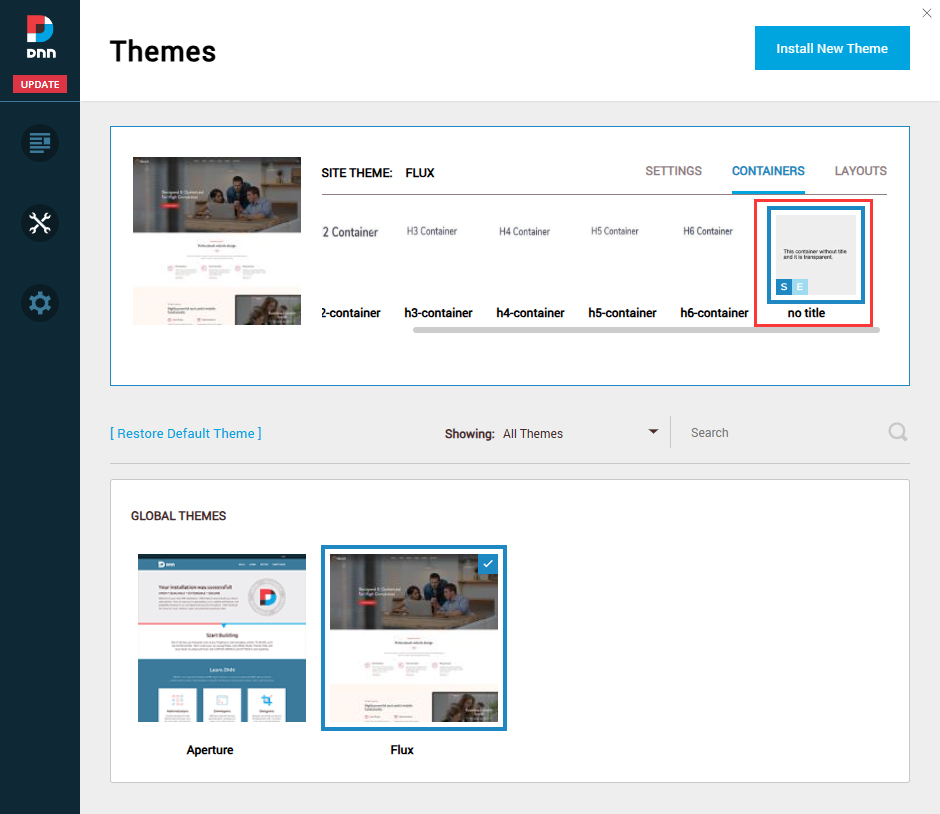
- Set both Site Container and Edit Container to Flux – No Title
4. Install the Modules
The installation package contains the following modules. Among them, DNNGo PageBuilder Manager is the core driver module and must be installed first. The remaining modules can be installed as needed:
| Module | Installation Package File | Description |
|---|---|---|
| DNNGo PageBuilder Manager | DNNGo_PageBuilder_x.x.x_Install.zip | Core driver module (required) |
| Form Builder | DNNGo_FormBuilder_x.x.x_Install.zip | Form module |
| LayerGallery Pro | DNNGo_LayerGalleryPro_02.01.01_Install.zip | Carousel/slider |
| DNNGallery Pro | DNNGo_DNNGalleryPro_07.02.01_Install.zip | Image gallery |
| xBlog | DNNGo_xBlog_10.04.00_Install.zip | Blog module |
| xEvent | DNNGo_xEvent_04.02.01_Install.zip | Event management module |
Install the Core Module First
Be sure to install DNNGo PageBuilder Manager first. All other modules depend on this core module; otherwise, installation will fail due to missing dependencies.
5. Initialize the Theme
When applying the theme to a new site for the first time, you need to perform an initialization:
- Log in to the site as a SuperUser
- Create a blank page
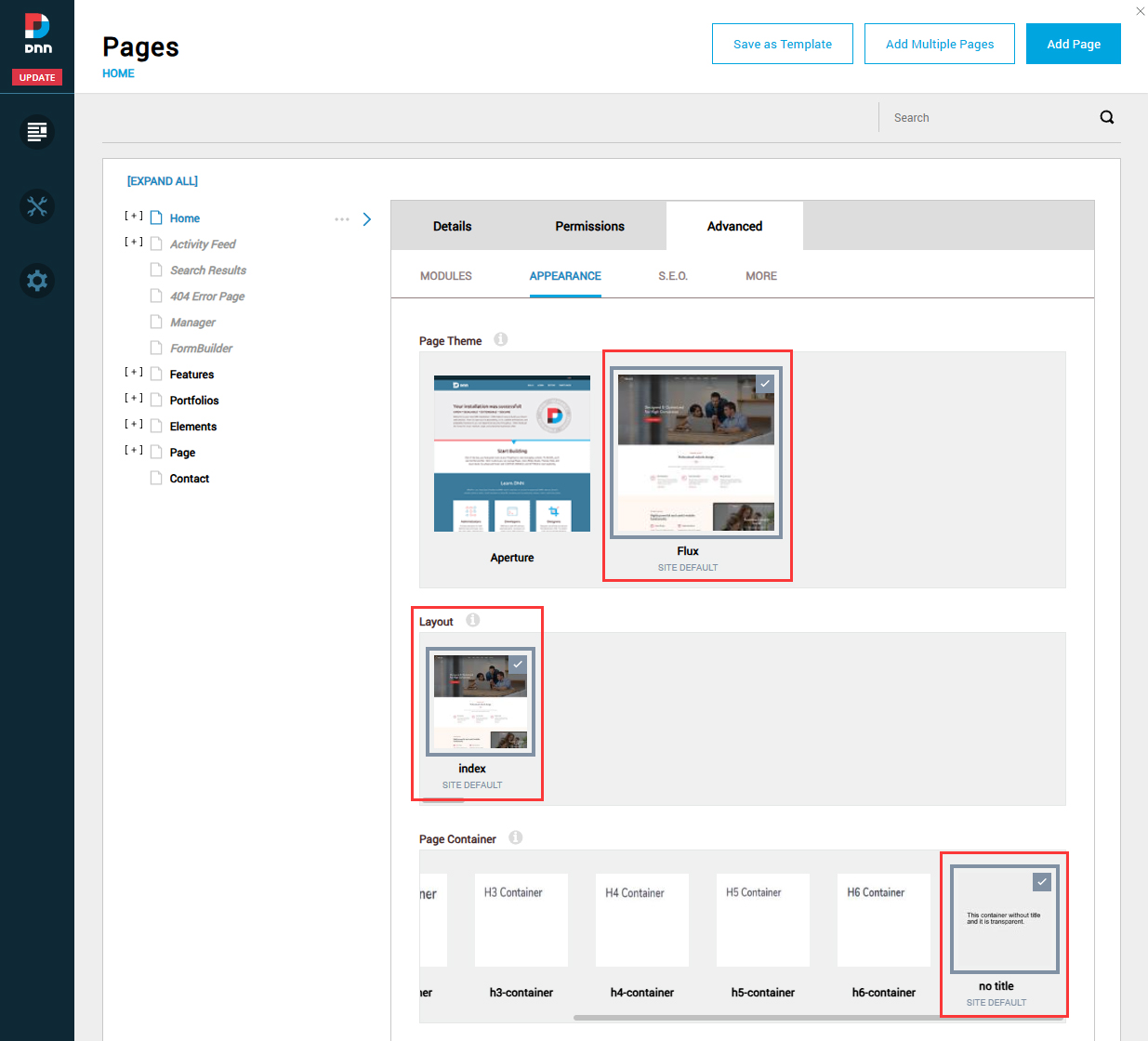
- Set the page's Theme to Flux, Layout to index, and Container to No Title
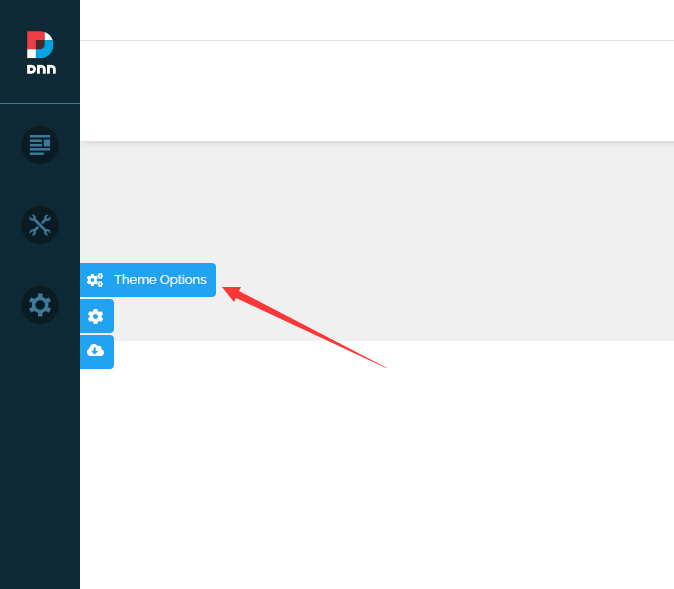
- Click the Theme Option button on the left side of the page
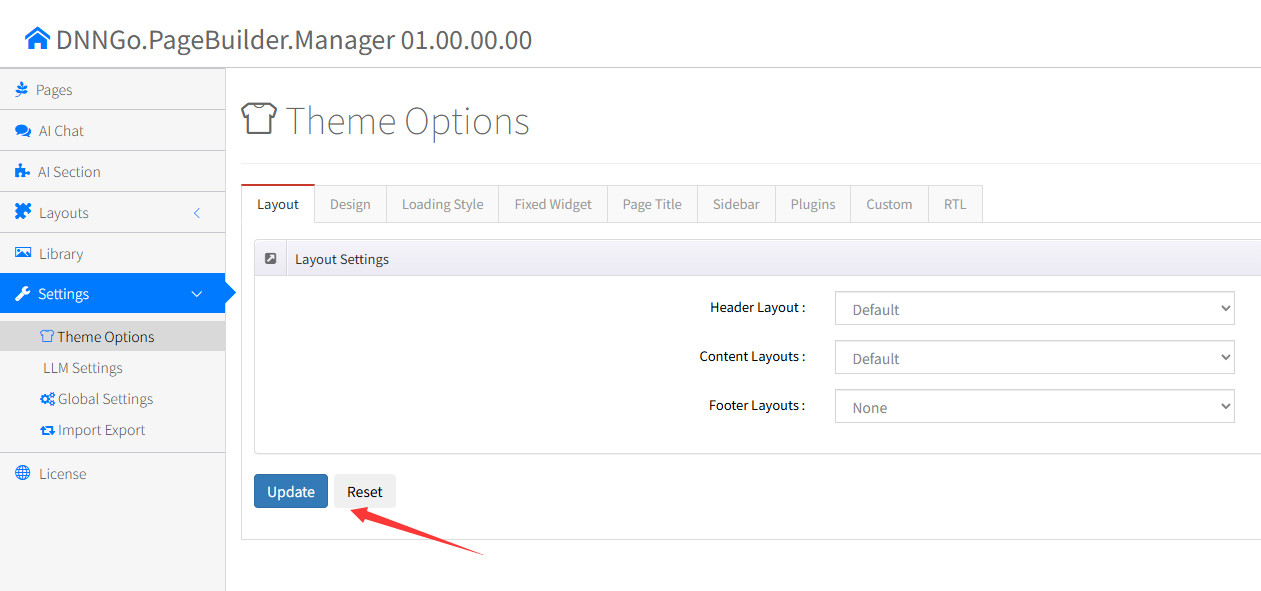
- Click the Update button to complete initialization
6. Upload Resource Files
The PageBuilder module comes with a large number of resource files and preset templates that need to be uploaded to the server via FTP.
Locate the PageBuilder folder in the download package and upload it via FTP to the Portals/_default directory of your site. There are many files, so the upload will take some time — please be patient. Once complete, PageBuilder will be ready to use.
Technical Support
If you encounter any issues during installation, please contact: dnnskindev@gmail.com